


Elgato quietly shifted one of the constraints around macro hardware when it shipped Virtual Stream Deck. The software promises to move the Stream Deck experience off proprietary buttons and onto any display that can host a virtual panel. That is interesting because it reframes what actually costs money: not the touch surface itself, but the software and the platform compatibility that let it behave like a reliable macro pad.
The practical takeaway revealed early in Nick Moe’s experiment is this: pairing a $30 capacitive touchscreen with Virtual Stream Deck can produce a working macro pad on Windows, but the value depends more on driver support and Elgato’s activation choices than on raw parts cost. Most people assume a cheaper screen means a cheaper Stream Deck. What actually determines whether the idea saves money is whether the touchscreen works on your OS and whether you can unlock the virtual feature without first buying expensive hardware.
That insight changes how the project should be judged. The device-level economics are trivial to beat, yet software gatekeeping and OS compatibility create new lock-in points. Nick’s video documents both an exciting practical hack and the seams in the current experience that anyone attempting this will need to navigate.
The rest of this piece unpacks the experiment, the two most consequential limits, and what entrepreneurs and tinkerers should expect if they try to replicate the trick.
The Experiment, In Brief
Nick bought a low-cost capacitive touchscreen often sold for Raspberry Pi projects and connected it to a Windows laptop. The panel displayed video and accepted touch instantly. He then installed Elgato’s Stream Deck software and discovered the Virtual Stream Deck feature was present but locked until a physical Stream Deck was connected. That single rule reshapes the arithmetic of the DIY build.
What Worked, Fast
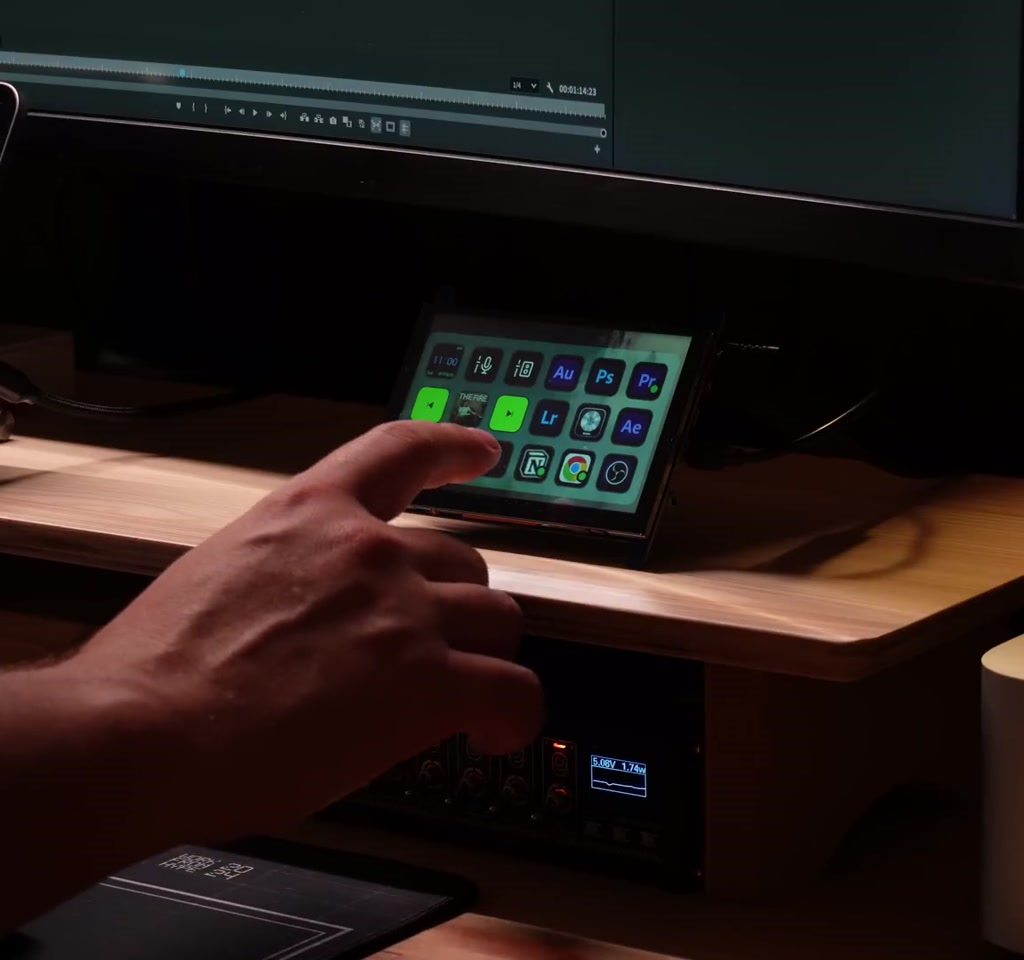
The cheap touchscreen acted like a conventional touch monitor on Windows. The Stream Deck app allowed a virtual panel to be resized to the small display, icons assigned, and macros triggered by taps. That meant no extra learning curve: the software behaved the same as it does with branded hardware, which is where the real value of the experiment lived.
Windows Plug And Play Surprise
On Windows the display registered as a touch input device without special downloads. The virtual buttons responded to finger taps, and the interface supported multiple pages and profiles. For anyone prioritizing plug and play on Windows, this behavior turns a cheap panel into an immediately useful control surface.
Customization Felt Genuine
The experiment showed the software is where the customization power sits. Nick configured time and date tiles, mic and speaker toggles, media controls, a Pomodoro timer, app launch shortcuts, and a page of video editing hot keys. That flexibility demonstrates why a software-defined macro pad is valuable when tailored to a workflow.
Important Limits And Tradeoffs
The hack works in principle, but two constraints decide whether it is a clever hack or an expensive detour: platform driver support and Elgato’s unlocking requirement. Together they can turn a $30 screen into a poor investment if you do not already own compatible hardware or the right operating system.
OS And Driver Compatibility
The touchscreen behaved fully on Windows but did not register touch on macOS without extra drivers. That mismatch matters: a panel that works instantly on one platform can be functionally useless on another. In practice this forces users to either limit themselves to a supported OS or spend time hunting drivers that may not exist for new macOS versions.
Software Unlocking And Cost Rebound
Elgato currently requires a physical Stream Deck to enable Virtual Stream Deck. That means borrowing hardware or buying the cheapest Stream Deck to unlock the feature, which erodes the DIY savings. The video reports that the unlock path can effectively add around $200, turning a $30 screen into a costly detour unless Elgato changes its activation policy.
Practical Setup Tips And Alternatives
If you try this, test the touchscreen on your main operating system before buying. Design layouts for larger tap targets on small panels, and consider mobile apps if the unlock path blocks you. Those three choices — compatibility checks, layout choices, and mobile fallbacks — determine whether the setup is practical for day to day use.
- Test the touchscreen on Windows or macOS before committing. Vendor pages or community posts often reveal compatibility notes.
- Use fewer, larger buttons on displays under 7 to 8 inches to reduce mis-taps and improve accuracy.
- If you cannot unlock Virtual Stream Deck without hardware, Stream Deck Mobile is a pragmatic stopgap that uses a phone or tablet as the control surface.
Stream Deck Mobile As A Practical Alternative
Stream Deck Mobile can replace a separate touchscreen and bypass the hardware unlock if its free or paid tiers meet your needs. The tradeoff is that a phone or tablet feels like a secondary device and may introduce latency or wireless reliability issues for live workflows. For many users it is the least expensive and most reliable fallback.
Virtual Stream Deck Vs Hardware Stream Deck
Comparing Virtual Stream Deck on a cheap touchscreen with a physical Stream Deck reveals a tradeoff between cost and integrated reliability. Hardware models bundle guaranteed driver support, tactile buttons, and a known activation path, while the virtual approach depends on OS drivers and the vendor’s licensing choices. The right option depends on your tolerance for setup friction.
Real-World Decision Factors
Consider durability, tactile feedback, and official support when choosing hardware. The physical Stream Deck offers consistent tap targets and vendor-backed compatibility. The virtual route can lower hardware cost but introduces uncertainty around touch drivers and software activation, which may negate any upfront savings.
Virtual Stream Deck Vs Stream Deck Mobile
Stream Deck Mobile and a cheap touchscreen running Virtual Stream Deck address similar needs but with different tradeoffs. Mobile is quick to deploy and avoids the unlock gate in many cases, while a touchscreen with Virtual Stream Deck provides a purpose-built surface and can feel more integrated when the software is enabled. Latency, comfort, and cost are the axes to weigh.
How This Fits The Bigger Picture
Virtual Stream Deck reframes what is proprietary about the Stream Deck ecosystem: software is the interface and hardware is becoming interchangeable unless the vendor decides to gate functionality. Elgato seems to be treating this as an extension of its hardware business rather than an immediate move to commoditize the control surface market.
The larger question is commercial. If Elgato offers a paid license for Virtual Stream Deck, DIY builds gain clear economic sense. If it continues to require hardware unlocks, DIY will remain mostly a curiosity for tinkerers or for people who already own a Stream Deck.
From a product design view, modular ecosystems invite new combinations, but commercial choices decide which combinations scale. Watch for licensing and distribution changes that will determine whether cheap touch hardware becomes a mainstream alternative or stays niche.
Who This Is For And Who This Is Not For
Best Suited For:
- Tinkerers and makers who already own a Stream Deck or can borrow one to unlock the software.
- Windows users who value low cost and are comfortable testing drivers and layouts.
- Content creators who want highly customized macro layouts and are willing to accept occasional quirks.
May Want To Avoid:
- Users on macOS who cannot confirm touchscreen driver support before buying.
- Professionals who need guaranteed reliability and vendor support for live production.
- Anyone who expects immediate cost savings without accounting for possible unlock fees or additional hardware.
FAQ
What Is Virtual Stream Deck?
Virtual Stream Deck is Elgato’s software feature that lets the Stream Deck interface run as a virtual panel on compatible touchscreens or displays, providing the same macro configuration and multi-page layouts as physical devices.
How Does A Cheap Touchscreen Work With Virtual Stream Deck?
On Windows a low-cost capacitive touchscreen can act like a normal touch monitor and host a resized virtual Stream Deck panel. Touch registration and display output are plug and play in many cases, but results depend on driver support for your OS.
Is A $30 Touchscreen A Real Replacement For A Physical Stream Deck?
Not always. The touchscreen can function as a replacement on Windows, but smaller tap targets, driver issues on other operating systems, and Elgato’s current unlocking rule mean it is not a guaranteed, drop in replacement for everyone.
Can You Unlock Virtual Stream Deck Without Buying Hardware?
Elgato currently requires a physical Stream Deck to enable the Virtual Stream Deck feature. That means you typically need access to a hardware device to unlock it; the video notes this requirement effectively ties the feature to existing hardware ownership.
Does Stream Deck Mobile Replace The Need For A Touchscreen?
Stream Deck Mobile can act as a practical alternative, letting a phone or tablet serve as the macro pad. It avoids some activation issues but may introduce latency or feel less integrated than a dedicated touchscreen panel.
What Are The Main Compatibility Risks?
The primary risks are OS driver support and whether touch input registers correctly. Windows often works out of the box for low-cost panels, while macOS may require additional drivers that are not always available.
Should I Wait For A Standalone Virtual Stream Deck License?
That depends on your needs. If you want a clean, low risk solution for production use, waiting for an official standalone license or buying a supported hardware Stream Deck may be the safer route. If you enjoy tinkering and can accept the tradeoffs, the DIY approach can be rewarding.
COMMENTS