


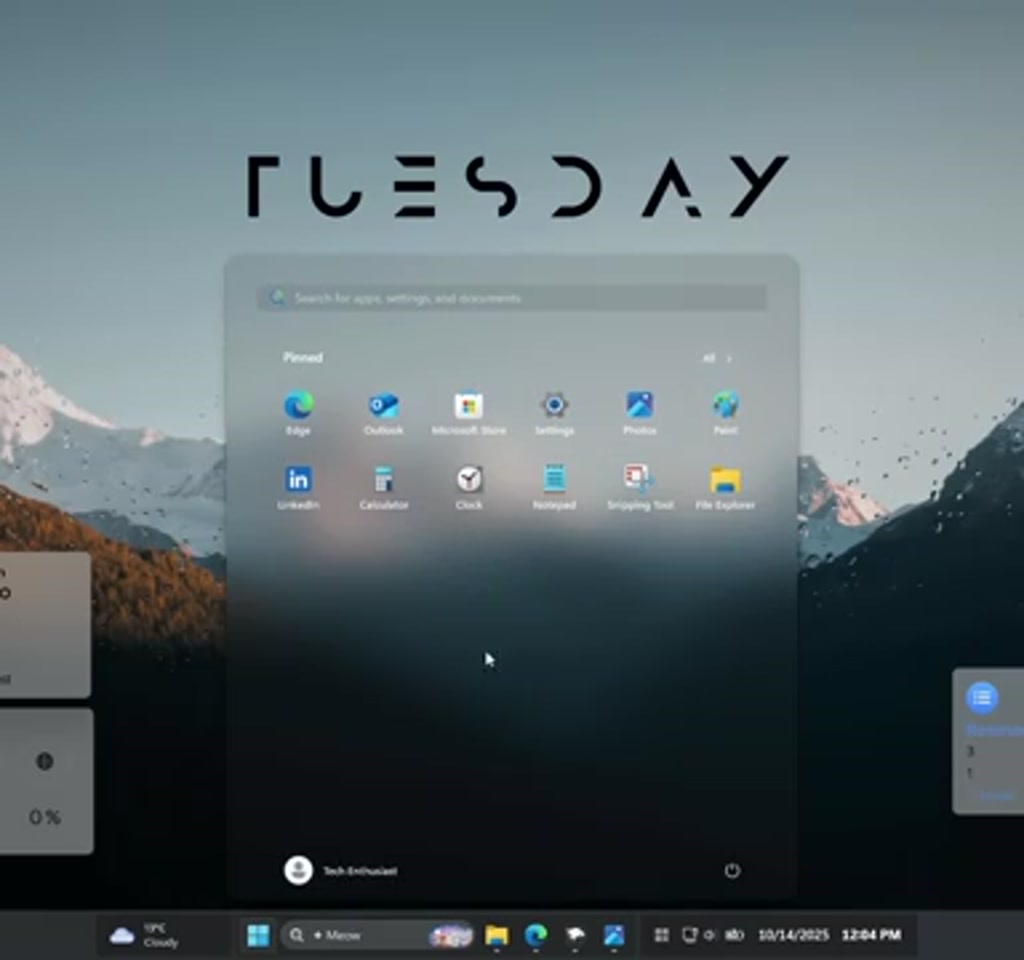
Tired of the stock Windows 11 look? The walkthrough behind this transformation is deceptively simple: a handful of community tools plus a few careful edits produce a taskbar, Start menu, notification center, widget set, and live wallpaper that feel like a design overhaul rather than a color tweak.
The real significance here is not that the desktop gets prettier. What actually determines whether this matters is how these changes trade visual clarity for system behavior, update friction, and ongoing maintenance. The video transcript lays out a direct recipe using Windhawk for shell mods, Rainmeter for widgets, and Lively Wallpaper for animated backgrounds. Those three pieces together reframe what a Windows desktop can look like, fast.
What most people misunderstand is that these are surface changes with platform level consequences. The mods deliver translucent shells and animated icons, but they do so by inserting a thin layer between you and Windows itself. That brings power and polish, and it also creates boundaries you need to respect.
Below is a clear, editorial take on the step by step process, the two tradeoffs that matter most, and a few practical notes on stability, performance, and upkeep so you know what to expect before you click install.
Windows 11 Customization Tools And Why They Work
Three community tools form the recipe: Windhawk for shell-level styling, Rainmeter for persistent desktop widgets, and Lively Wallpaper for animated backgrounds. Together they separate look, interactive elements, and continuous rendering so you can change one layer without breaking the others. This modular division is why the setup feels fast and reversible.
Windhawk Purpose And Role
Windhawk hooks into Windows shell behavior to present alternate visuals for the taskbar, Start menu, and notification center. Because it modifies how the shell renders, it can create translucency, icon animation, and layout changes that the native UI does not expose.
Rainmeter Purpose And Role
Rainmeter hosts skin packs and widgets that sit on the desktop: clocks, calendars, weather panels, and notes. Skins are plain text files, so appearance and layout are directly editable and easy to back up, which makes Rainmeter the most malleable piece of the stack.
Lively Wallpaper Purpose And Role
Lively replaces static wallpapers with animated or interactive backgrounds. It renders continuously in the background, which is why it contributes most to ongoing CPU and GPU usage compared to the other components.
Step By Step: Taskbar, Start Menu, And Notification Styling
Windhawk And Taskbar Styling
The transcript instructs installing Windhawk with administrator rights, then adding the Windows 11 Taskbar Styler mod and selecting a Taskbar 12 theme. Windhawk intercepts shell calls to alter transparency, icon behavior, and layout without changing the underlying processes.
Start Menu And Notification Center Transparency
For a unified look the creator applies a Translucent Start Menu theme and a Translucent Shell theme for notifications using Windhawk mods. Applying all matching mods yields visual continuity, but it also concentrates dependency on Windhawk when Windows updates touch shell internals.
Widgets With Rainmeter And The Mond And Monterey Packs
Installing Rainmeter And Mond
Rainmeter is used to place glanceable widgets. The walkthrough removes default skins, installs a Mond pack for a simple clock and day display, and edits the skin file to remove unwanted meters and scale elements to 1.60 before saving and refreshing.
Rainmeter Skin Editing Basics
Rainmeter skins are plain text. To customize, remove or comment lines for meters you do not want, change numeric scale values, and save. This readability makes trial and error low risk as long as you keep backups of original skin files.
Monterey Pack And Interactive Widgets
The Monterey pack adds calendar, weather, notes, and reminders. The transcript shows switching weather city settings and choosing a blur style so widgets match the translucent aesthetic while offering small interactive touches like notes and reminders.
Live Wallpaper With Lively Wallpaper
Installing And Customizing Lively
Install Lively from GitHub or the Microsoft Store, choose a Rain Live preset, and point it at an Unsplash image. The walkthrough customizes intensity, speed, brightness, and zoom to match the desktop tone.
Lively Performance Settings
Lively continuously renders the wallpaper, so key settings to manage are animation intensity, frame rate, and whether the wallpaper pauses on full-screen apps. Tuning these reduces background load while preserving motion.
Two Concrete Constraints And What They Mean
Constraint one is compatibility and update friction. Windhawk and similar shell mods depend on internal Windows UI behavior. Major Windows updates can change those internals and require the mods to be updated or reapplied. Expect occasional maintenance after feature updates.
Constraint two is continuous resource cost. Animated wallpapers and always-on widgets use CPU, GPU, and memory at idle. On modern hardware this is often a single-digit percentage increase, but on older systems the same changes can materially affect responsiveness.
There is also a provenance constraint. These tools typically require downloading executables or community mods. Verifying sources and using official pages reduces risk, and administrator rights are usually needed for shell-level changes.
Practical Tips And Small Tweaks That Matter
Sequence installations to make rollback simpler: install Windhawk and test one mod at a time, add Rainmeter with a single skin pack, and add Lively last to measure added rendering cost. Keep backups of skin files before editing so you can restore a known good state quickly.
When editing Rainmeter, save the original skin text first, then make incremental changes and refresh. For Windhawk, prefer mods from maintained repositories and check compatibility notes after major Windows updates.
Comparison: Windhawk Vs Stock Shell And Alternatives
Windhawk Vs Stock Windows Shell
Windhawk delivers visual features the stock shell does not expose, such as deeper translucency and icon animation. The tradeoff is an external dependency that must stay compatible with Windows updates, while the stock shell provides maintenance-free stability.
Rainmeter Vs Built-In Widgets Or App Gadgets
Rainmeter offers deeper customization and skinning compared to built-in Windows widgets, at the cost of manual configuration and potential resource overhead. Built-in widgets are simpler and better supported, but less flexible.
Lively Wallpaper Vs Static Wallpapers
Lively provides motion and atmosphere a static image cannot, but it increases continuous resource usage. The decision rests on whether the visual benefit outweighs the performance cost on your hardware.
Where This Approach Makes Sense And Where It Becomes Fragile
This stack works well for creators, designers, and users who value a unified, glanceable workspace and are comfortable with occasional upkeep. It returns a lot of aesthetic value for modest effort when used on modern hardware.
It becomes fragile for mission-critical machines, older hardware, or environments with strict uptime and enterprise security policies. When long-term maintenance-free operation is essential, native options or vendor-supported tools are safer.
Forward Looking Thoughts
Community-driven tooling has matured enough that a cohesive Windows 11 desktop aesthetic is achievable in minutes. Wider adoption will depend on better packaging, clearer compatibility signals, and safer update practices that reduce the maintenance tax for casual users.
For now the path is clear: if you prioritize design and accept occasional upkeep, this recipe remakes Windows 11 from a familiar interface into something that looks and feels distinctly yours. If those costs are unacceptable, consider limiting changes to Rainmeter alone or skipping live wallpapers.
Who This Is For And Who This Is Not For
Who This Is For: users who want a tailored desktop, appreciate visual continuity, and are willing to maintain small community tools. Designers, content creators, and enthusiasts who value glanceable widgets will find the setup rewarding.
Who This Is Not For: enterprise environments, machines used for critical uptime or regulated workflows, and older hardware where extra background load could reduce responsiveness. If you cannot or will not update mods after Windows feature updates, this approach is not a good fit.
FAQ
What Is Windhawk And What Does It Change
Windhawk is a community tool that intercepts Windows shell calls to modify visuals such as the taskbar, Start menu, and notification center. It can add translucency, animations, and layout changes that the stock shell does not expose.
How Does Rainmeter Work For Widgets
Rainmeter uses skin files to render persistent desktop widgets like clocks, calendars, and notes. Skins are plain text files, editable by hand, which makes customization direct and reversible with simple backups.
Does Lively Wallpaper Impact Performance Significantly
Lively Wallpaper renders continuously and therefore increases CPU and GPU usage. On modern machines the increase is often modest, but on older systems it can meaningfully affect responsiveness. Tuning intensity and pausing on full-screen apps reduces impact.
Are These Tools Safe To Install
These are community tools that typically require downloading installers or mods. Use official project pages, verify sources, and exercise caution with untrusted packages. Administrator rights are usually needed for Windhawk.
Will Windows Updates Break These Mods
Major Windows feature updates can change shell internals and may require mods to be updated or reapplied. In practice expect occasional maintenance after significant updates rather than constant breakage.
Can I Revert To The Original Desktop Easily
Yes. Because Rainmeter skins are text files and Windhawk applies mods through its own framework, uninstalling Windhawk, disabling Rainmeter skins, and resetting the wallpaper returns the desktop to its default state. Keep backups of original skin files for faster restoration.
Is This Setup Suitable For Older Hardware
On older hardware the continuous rendering and widget polling can degrade responsiveness. If hardware is limited, skip animated wallpapers or use minimal Rainmeter skins to reduce background load.
Where Can I Find The Exact Mods And Skins Shown
The walkthrough creator links to each program and skin in the original video description. Those links point to the exact downloads and skin pages referenced in this article.
COMMENTS