


Most people chase faster internet by restarting routers or downloading random apps. The real fix is usually hiding inside the phone itself. Your device already includes a built in WiFi optimization feature that quietly decides how strong your connection feels. The primary keyword here matters, because this WiFi trick is rarely explained in a way normal users can actually use.
iPhone and Android both include an option that makes your connection more stable by switching away from weak WiFi before it drags your speed down. It sounds simple, but very few people turn it on or understand what it really does.
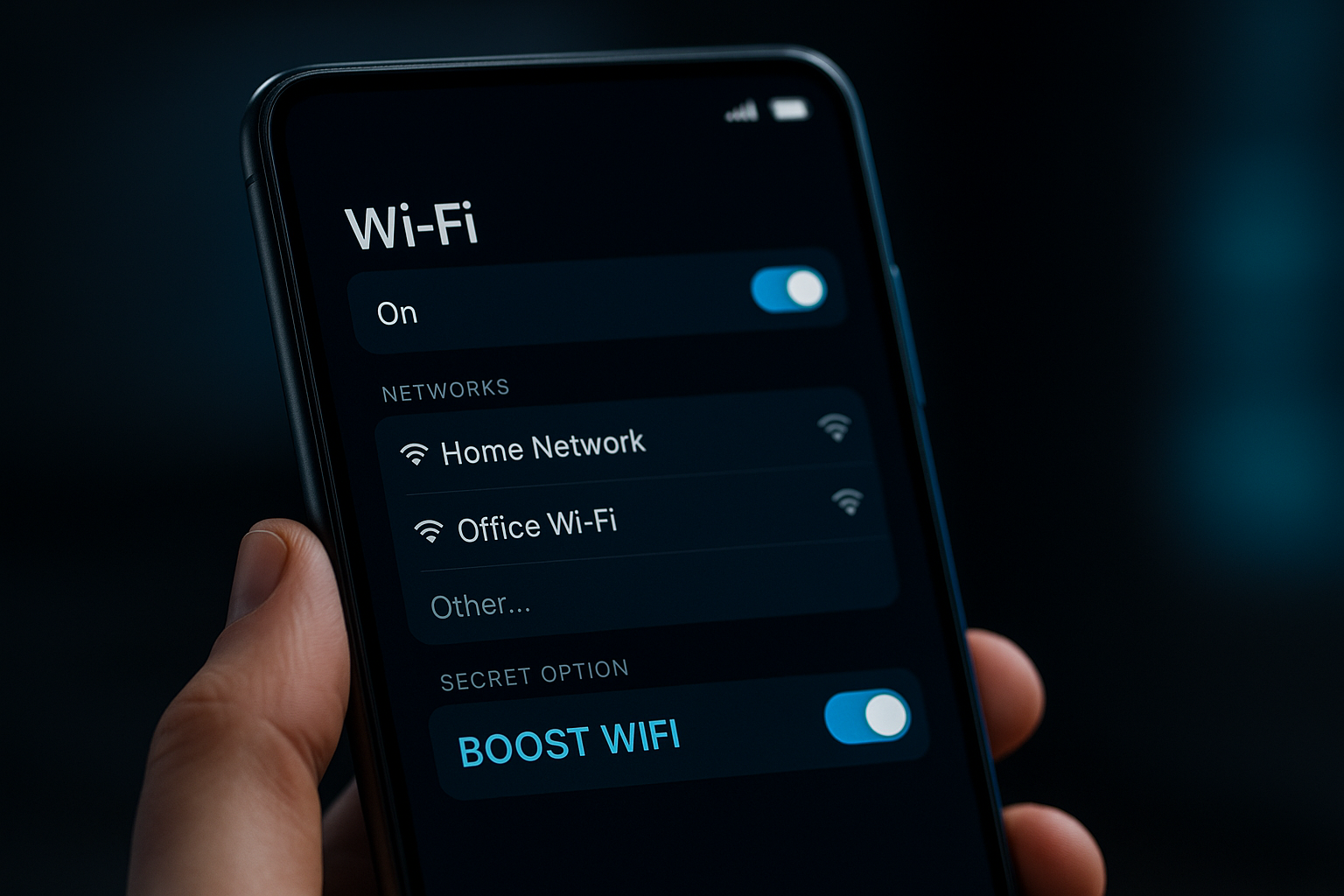
IMAGE: BIT REBELS
The Setting Most Users Ignore
Both major phone platforms try to protect you from slow WiFi, but the feature is buried.
On iPhone
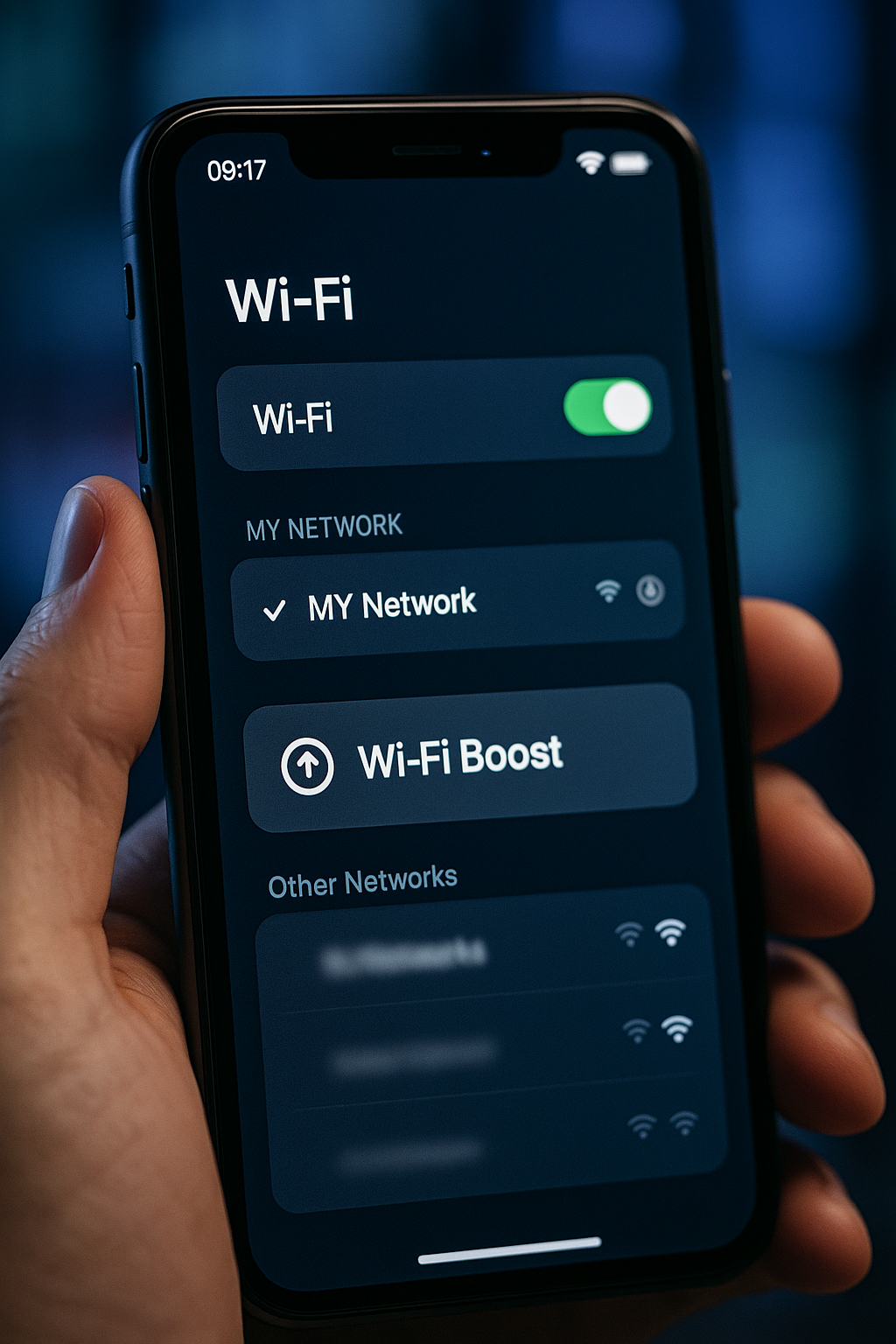
There is a setting called WiFi Assist. It lives at the very bottom of the WiFi menu and is easy to miss. When it is on, your phone moves away from weak WiFi and uses mobile data if WiFi becomes too slow to load a page. This does not boost the WiFi signal itself. The speed feels faster because the phone stops clinging to a poor connection.
This setting is built into iOS and has been around for years. Many iPhone owners turn it off simply because they never read what it does.
On Android
Android includes a similar behavior. Depending on the device, you might see terms like:
- Adaptive Connectivity
- Switch to Better WiFi
- Intelligent WiFi
- WiFi Network Rating
- Switch to Mobile Data
Samsung, Google Pixel, Xiaomi, and other brands use slightly different names, but the idea is the same. When the phone detects that the WiFi signal is unstable or slow, it moves you to a better option.
This feature is part of standard Android builds and is mentioned across major device manuals. It does not change router hardware or signals. It only helps your phone avoid bad WiFi before it slows everything down.
Why This Setting Makes the Internet Feel Faster
WiFi problems rarely come from the router alone. Crowded channels, thick walls, or just sitting on the edge of your signal range create sudden drops in quality. Phones do not always switch instantly when WiFi becomes unstable. They cling to the network even if the speed collapses for a moment. That is where this trick works wonders.
These built in features watch the stability of your connection. The moment your signal weakens enough to affect loading time, the phone jumps to a faster path. You stay connected without the usual lag spikes.
There is no magic here. No hidden antennas or secret boosts. The speed bump comes from refusing to use a bad network when a better option is available.
Hidden Bonus Settings That Help Even More
If you like practical tweaks, these are easy to confirm and safe to use. All of them are built into phones, not third party apps.
Switch Between 2.4 and 5 GHz When Needed
Many routers name both bands the same. Phones sometimes pick the wrong one. You can fix this by separating the network names on your router. That way you choose the right band each time:
- 5 GHz is usually faster but has shorter range.
- 2.4 GHz reaches farther but gets crowded easily.
This is one of the simplest upgrades for apartment living.
Use the Built In Network Rating on Android
Some versions of Android show a rating under each WiFi network. This is based on actual signal quality and stability. Choosing the highest rated one usually gives you better results than picking by name alone. This is already inside the operating system and does not rely on outside data.
Refresh the WiFi Environment
A short list of actions that actually help, based on well documented behavior in both iOS and Android:
- Forget old networks you no longer use
- Clear networks with weak passwords or unstable signals
- Place the phone away from sources of interference like microwaves or thick reinforced walls
These are all common fixes backed by years of support documentation from Apple, Google, and major router brands.
When This Trick Helps the Most
This built in setting becomes extremely useful in situations like:
- Working in cafes with crowded WiFi
- Playing games on mobile where lag hits hard
- Using streaming apps that pause when WiFi dips
- Living in apartments where everyone has their own router
- Moving around the home while on video calls
These scenarios create unstable WiFi conditions. Phones without these settings enabled often freeze or slow down until the signal recovers.
If you read Bit Rebels often, you already know how much everyday performance depends on the tech we carry. Articles about mobile gadgets, smart home setups, and gaming gear often point to the same idea. A tiny setting can completely change your experience.
How To Activate It Instantly
iPhone
Go to Settings, then WiFi. Scroll all the way down. Turn on WiFi Assist.
Android
Go to Settings, then Network or Connections. Look for a feature that mentions switching to better networks or auto switching between WiFi and mobile data. Turn it on.
The exact wording depends on the manufacturer, but phones from Samsung, Google, OnePlus, and Xiaomi almost always include it.
This is safe to use. It is part of the operating system, not an experimental toggle. The only thing to keep in mind is mobile data usage. If your plan is limited, check your carrier app once in a while.
The Real Reason This Trick Works
WiFi feels fast only when it is stable. The moment the signal wobbles, pages stall and videos buffer. The built in trick inside your phone simply stops you from riding out those weak moments. It selects the fastest available path on its own.
Once you try it, you rarely want to go back. Your phone stops behaving like a stubborn device that refuses to let go of bad WiFi. It starts acting like it actually understands what you want: a connection that does not slow down for no reason.
This is the kind of fast fix modern users appreciate, especially readers who enjoy tech, gadgets, and smart daily upgrades. If you want more deep dives into hidden phone features or clever tricks, check out other Bit Rebels topics like gaming setups or mobile innovation.
COMMENTS