


There is a small category of software that changes not just what you make, but how you think about the space around you.
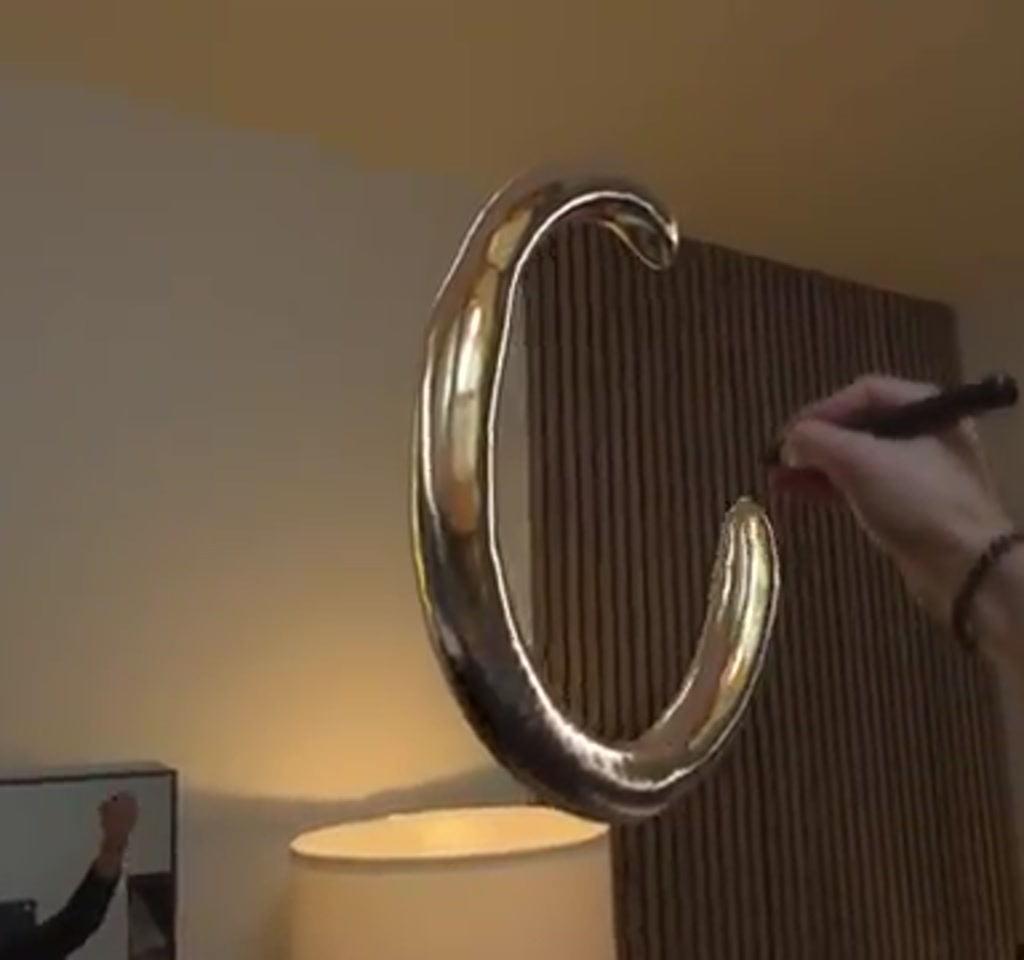
AirDraw Finger Paint lands in that category by doing something deceptively simple. It lets you reach into empty air, pinch, and draw in full 3D. Then it makes those shapes obey gravity and collide with the furniture in your room.
The real significance is not just that you can sketch a floating ring or a translucent backboard. What actually determines whether this matters is the combination of Vision Pro depth awareness, a tactile input model that maps to real gestures, and exportability so your doodles stop being ephemeral.
Early in the session the pattern becomes clear. Draw something static if you want a sculpture. Turn on gravity and watch the scene become a physics experiment. Save as USDZ and that experiment becomes a reusable 3D asset. That shifting of roles, from play to persistent object, is the primary insight here.
What AirDraw Finger Paint Actually Does
AirDraw Finger Paint is an Apple Vision Pro app that translates finger pinches or a Logitech Muse into 3D strokes that live in your room. It combines brush styles, material presets, and a physics toggle so drawn objects can be static sculptures or dynamic items that respond to gravity and room geometry.
How It Works On Vision Pro
At its core the app maps natural gestures to virtual strokes and uses the Vision Pro depth system to anchor those strokes in real space. Pinch to draw, flip the left hand to open a palette, choose brushes and materials, then decide whether the object remains fixed or becomes subject to physics interactions.
Input And Controls
Drawing is performed with a pinch gesture between index finger and thumb, or by using the Logitech Muse as a spatial pencil. A floating palette appears when the left hand flips over, offering brush selection, material presets, size adjustment, and a pinch draw distance control.
Brushes And Materials
The app ships with material presets including translucent, chrome, brushed metal, pulsing, and textured surfaces. These materials react to occlusion and local lighting, which helps the drawn objects read as part of the same physical space as your furniture and lamps.
Logitech Muse Integration
Support for the Logitech Muse lets the Muse behave like a precise 3D pencil, using infrared tracking so Vision Pro can locate it in space. The accessory improves line fidelity and reach, enabling more detailed work farther into the room than fingertip pinching alone.
Physics Is The Shift, Not The Gimmick
Physics in AirDraw Finger Paint recasts drawing as playful experimentation rather than static making. In gravity mode loops sag, chains dangle, and hand-drawn ramps let objects roll, turning a simple sketch into a room-aware mechanical interaction that reacts to furniture and surfaces.
That behavior matters because it changes intent. A doodle becomes a prop, a toy, or a prototype that you can move around, test, and save. The combination of live depth tracking and physics is what moves the experience from novelty to creative utility.
Creativity, Persistence, And Export
Beyond the headset, AirDraw offers export to USDZ so creations leave the ephemeral AR session. Saved USDZ files appear in the Files app on Vision Pro and can be pinned into the environment, prepared for sharing, or cleaned up for 3D printing or production use.
From Doodle To Asset
Exporting to USDZ turns a room-scale experiment into a portable 3D model. That path enables use cases such as rapid prototyping, creating props for mixed media scenes, or archiving playful experiments as reusable assets.
Presets, Materials, And The Sensory Detail
The sensory detail is a practical ingredient in the illusion. Chrome reflections and translucency that react to local lighting help the brain accept drawn objects as part of the same space. These visual cues are deliberately part of the material system.
Constraints, Tradeoffs, And Real World Limits
No creative tool is without boundaries. AirDraw surfaces at least two concrete constraints that shape how and when it is useful: occasional stability issues and physics fidelity that favors robust gestures over delicate fingertip interactions.
Stability And Bugs
Stability is broadly positive but imperfect. The app has a 4.4 out of 5 score from over 300 ratings, yet occasional hiccups appear: undo may fail to respond sometimes, and color changes have required restarts in a few sessions. These are sporadic rather than constant, but they are worth planning for.
Physics Fidelity Limits
Physics feel convincing for playful interactions but are not a substitute for industrial-grade simulation. Light fingertip grazes can cause erratic reactions, so the system favors clear, deliberate gestures. Complex dynamic scenes may require resets and careful handling to keep behavior predictable.
Workflow Considerations And Practical Notes
Practical workflow choices shape whether AirDraw fits a given project. Pin the UI to keep controls within reach while you move; export USDZ for downstream use; and budget time for post-processing since gesture-based geometry often needs cleanup before production or 3D printing.
For large persistent scenes, expect iteration. Saving and reloading is solid for quick compositions, but memory and scene management become factors as dynamic object count increases. Future app updates could ease that pain, which leaves an open question about scale that creators will watch closely.
AirDraw Finger Paint Vs Traditional 3D Tools
Comparing Airdraw Finger Paint to traditional 3D tools highlights a tradeoff between immediacy and precision. Airdraw prioritizes rapid, spatial creation and playful physics, while desktop 3D packages focus on precision modeling, fine-grained controls, and predictable export pipelines.
Gesture Tools Vs Mouse And Pen
Gesture-based input lets you sketch in situ and think in room scale, but it sacrifices some of the precise control available with mouse, tablet, or pen. The Muse accessory narrows that gap, but the core strength remains in exploratory, spatial idea generation.
USDZ Export Vs Native 3D Formats
USDZ is convenient for AR workflows and Vision Pro integration, but projects destined for complex rendering or manufacturing often require conversion and cleanup. USDZ export is a bridge rather than a final step for production work.
Who This Is For And Who This Is Not For
Who This Is For: Creators and designers who prioritize rapid spatial ideation, playful prototyping, or immersive storytelling will find AirDraw compelling. It is ideal for educators, concept artists, and anyone exploring room-scale interactions who values immediacy over absolute precision.
Who This Is Not For: If you need industrial-grade fidelity, deterministic physics for engineering validation, or flawless session stability during long production runs, AirDraw may frustrate. Large-scale scene building for production still favors established 3D pipelines.
The Bigger Picture And What Comes Next
AirDraw Finger Paint demonstrates a clear direction for spatial computing: intuitive gesture input coupled with room-aware physics and exportability. The app is a vivid example of how spatial tools can evolve from toys into design instruments, even as stability and scale remain active development questions.
Expect developers to tighten polish, expand scene management, and extend export formats. Creators will push toward collaborative play and mixed media workflows, testing the boundaries between ephemeral experimentation and production-ready assets.
FAQ
What Is AirDraw Finger Paint?
AirDraw Finger Paint is an Apple Vision Pro app that lets users draw in 3D using pinch gestures or a Logitech Muse, apply material presets, toggle physics, and export creations as USDZ files.
How Does AirDraw Work On Vision Pro?
The app maps pinch gestures or Muse input to 3D strokes and uses Vision Pro depth sensing to anchor objects to real-world geometry. A floating palette provides controls for brushes, materials, draw distance, and physics mode.
Can You Export Drawings To USDZ?
Yes. Drawings can be saved and exported as USDZ files, which appear in the Files app on Vision Pro and can be pinned, shared, or further processed outside the headset.
Does It Support Accessories Like The Logitech Muse?
Yes. The app supports the Logitech Muse, which provides infrared-based spatial tracking and improves line fidelity and reach compared to fingertip pinching.
Is Physics Accurate Enough For Prototyping?
Physics are convincing for playful prototyping and interaction testing, but they are not a substitute for industrial simulation. The system favors robust gestures and may behave unpredictably with very delicate inputs.
Can You 3D Print Outputs From AirDraw?
Potentially. USDZ exports can be converted and cleaned for 3D printing, but files from gesture-based tools often need post-processing before they are print-ready.
Is The App Stable For Long Sessions?
Stability is generally good but not flawless. The app has a strong average rating, yet users have reported occasional undo failures and color changes that required restarts. These issues appear sporadically rather than constantly.
Where Should I Look For Future Improvements?
Future improvements likely include better scene management for many dynamic objects, tighter stability, and expanded export options beyond USDZ. Those changes would broaden the app’s adoption in production workflows.
COMMENTS