


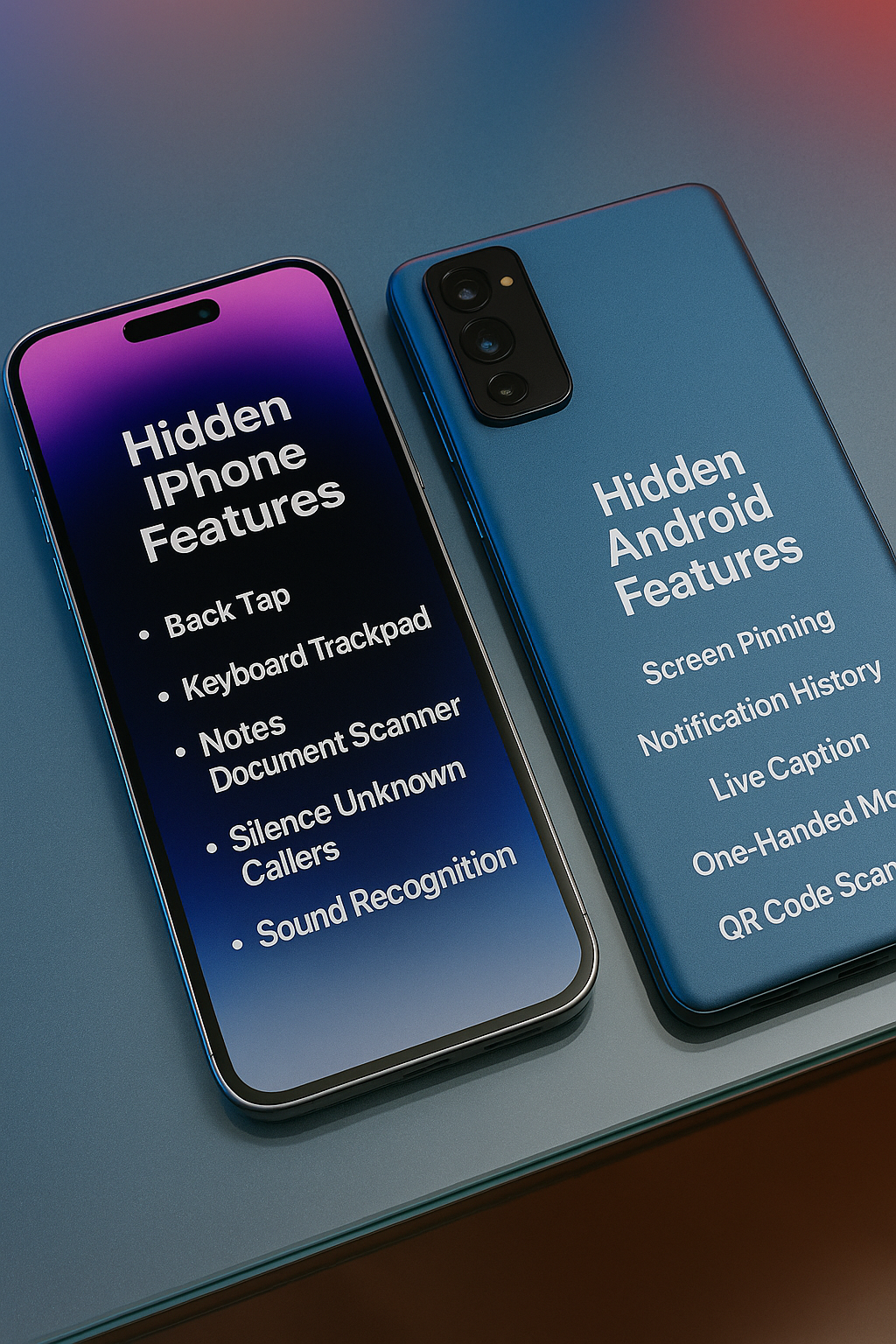
Your phone is not missing features. You are just not using half of them. Most people stick to the obvious stuff on the surface and skip the deeper tools built into iOS and Android. The strange part is that many of those buried features are the ones that clear the most friction. They speed up small tasks, sharpen focus, tighten privacy and cut down on the tiny daily annoyances that stack into real wasted time.
Both platforms hide a surprising amount of power behind menus most users never open. Some of these settings act like shortcuts disguised as accessibility tools. Others feel like developer tricks that somehow escaped into the public build. Once you activate a few of them, you start wondering why they are not promoted on the home screen.
This is an informational deep dive into real features already sitting inside modern iOS and Android, verified, documented and genuinely practical. These are not gimmicks or secret codes. They are everyday upgrades that change how fast you move from one task to the next.
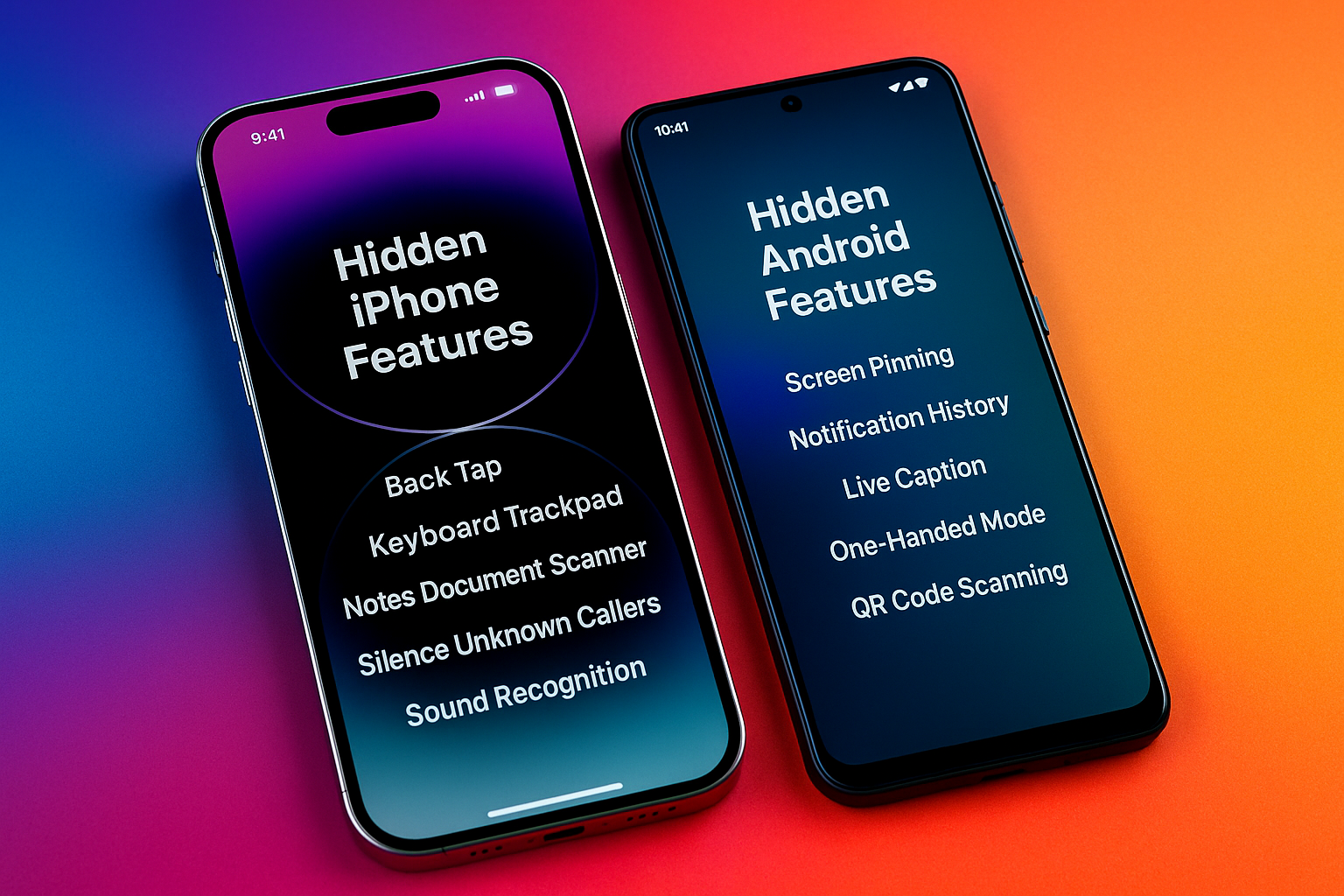
IMAGE: BIT REBELS
Why Your Phone Still Feels Slower Than It Should
You install apps, delete a few, change the wallpaper and stop there.
Meanwhile, the operating system is packed with small tools for speed, privacy and focus that never appear on the home screen.
Think of them as cheat codes for everyday friction:
- Less tapping through menus
- Less distraction
- Less “wait, where did that notification go”
Let’s start with the hidden iPhone side, then mirror it on Android so both platforms get equal love.
Bit Rebels readers who care about privacy, tracking and security gadgets will spot several perfect tie-ins for deeper reading later.
Hidden Iphone Features You Will Actually Use
1. Back Tap: Turn The Apple Logo Into A Shortcut Button
On iPhones running iOS 14 or later, the Apple logo on the back can act as a secret button. Apple calls it Back Tap and you can map a double tap or triple tap to actions like screenshot, flashlight, Control Center or even Shortcuts automations. WebNots+1
You set it up under Settings then Accessibility then Touch then Back Tap. Once you assign something useful, it becomes muscle memory in a few days.
Good everyday uses:
- Double tap for flashlight
- Triple tap to launch your favorite notes app
- Double tap for Shazam or music recognition
No new apps, just a setting people rarely open.
2. Hidden Keyboard Trackpad For Precise Cursor Control
Typing a longer email or editing text on a phone can feel clumsy. The default iOS keyboard secretly turns into a trackpad when you touch and hold the space bar until the keys fade. WebNots+1
Once that happens you can slide your thumb around to move the text cursor with laptop level precision.
If you press harder or tap again, you can also select text without fighting tiny handles.
This one is perfect when you are editing social posts, code snippets or crypto wallet addresses where a single wrong character matters.
3. Use Notes As A Built In Document Scanner
The iPhone already has a scanner that is good enough for contracts, receipts and signed forms. You do not need a separate scanning app.
Open the Notes app, create a new note, tap the camera icon and choose Scan Documents. Point it at a page and iOS will detect the edges, correct the perspective and save a clean scan as a PDF or image. WebNots+1
Daily uses:
- Scan invoices for your side projects
- Capture physical game codes or boarding passes
- Store signed agreements for brand deals you land through places like Bit Rebels
4. Silence Unknown Callers To Kill Spam Without Losing Real Calls
Spam calls are still a thing. On modern iPhones you can push almost all of them directly to voicemail.
Under Settings then Phone there is a toggle called Silence Unknown Callers. When it is on, calls from numbers not in your contacts, recent outgoing calls or Siri suggestions go straight to voicemail and appear in Recents, while your known contacts still ring normally. Cashify
If you rely on cold calls from clients, leave it off. If you mostly work through email and messaging, this setting changes the noise level of your day.
5. Sound Recognition For Critical Alerts Without Looking At Your Phone
Sound Recognition sits under Accessibility and lets your iPhone listen for specific sounds such as doorbells, smoke alarms, a baby crying or running water. When it hears one, it sends you a notification. BGR
You can also create custom sounds on supported versions, so the phone learns your actual doorbell instead of a generic sample.
This is huge if you:
- Wear headphones a lot
- Work in another room while waiting for a delivery
- Have accessibility needs that make sound based alerts important
It is one of those features that feels niche until the day it saves you.
6. Measure App As A Pocket Tape Measure
Apple ships a Measure app that uses the camera and augmented reality to estimate distances and object sizes. It can automatically detect rectangles like boxes or frames and show their dimensions. WebNots+1
For small, everyday tasks you no longer need to hunt for a physical tape measure:
- Check if a monitor fits a desk
- Quickly measure a bookshelf
- Capture approximate dimensions for a package you want to ship
It will not replace a professional laser tool, but it is more than enough for home and office use.
7. Find My Even When Your Iphone Is Powered Off
On supported models with recent iOS versions, the Find My network can still help locate an iPhone that is powered off or has very low battery. The phone uses low energy signals that nearby Apple devices can pick up, then the network relays an approximate location to your account. WebNots
The setting sits under Find My iPhone with an option to enable “Find My network” and “Send Last Location”.
Once those are on, you get a real safety net for travel, late night public transport and crowded events.
Bit Rebels readers who care about travel tech and security gear have a natural internal link opportunity here.
8. Offload Unused Apps To Free Space Without Losing Data
Storage full alerts always pop up at the worst time. iOS has a setting called Offload Unused Apps that automatically removes apps you do not open for a while, while keeping their documents and data. WebNots
You turn it on in Settings under App Store or in iPhone Storage. The icon stays on your home screen with a small cloud symbol, and when you tap it the app is reinstalled with your data intact.
Perfect when you:
- Shoot a lot of 4K video
- Play big games, then rotate between them
- Do not want to micromanage storage all the time
9. Live Text: Copy Text Directly From Photos
On devices with compatible chips and iOS versions, the Photos app can detect text inside images. Apple calls this Live Text. Cashify
When you open a photo with visible writing, you see a small text icon. Tap it, drag to select and you can copy Wi Fi passwords from stickers, phone numbers on billboards or notes from a whiteboard straight into messages or email.
For Bit Rebels style tech and gaming readers, this is also great for grabbing codes, URLs or error messages without retyping.
10. Move Multiple Apps At Once On The Home Screen
Rearranging a big home screen one app at a time is painful. iOS has a quieter feature where you can drag several icons together.
Tap and hold an app until it wiggles, start dragging it, then use another finger to tap more icons. They stack under your finger and you can move the entire group to another page or folder in one move. Tom’s Guide
You will use this once during a cleanup, then wonder why you never did it before.
Hidden Android Features That Quietly Remove Friction
Android is more fragmented, so some of these live on most devices, while others are specific to stock or near stock Android and Pixel phones. The key is to know they exist and then check your own model.
11. Screen Pinning So People Cannot Snoop When You Hand Over Your Phone
Screen pinning locks your phone to a single app until you unpin it with your unlock method. It is built into Android’s security settings on many devices. Digital Tech Scoop+1
Typical path:
Settings then Security then Screen pinning or App pinning.
Once enabled, you pin an app from the Recent apps view, often by tapping a small pin icon. To unpin, you use a key combo or gesture and then enter your PIN or pattern.
Perfect use cases:
- Giving your kid YouTube without opening your mail
- Letting a stranger dial a number on your phone without access to your photos
- Showing a single Bit Rebels article to a friend without them scrolling further into your tabs
12. Notification History To Rescue Accidentally Cleared Alerts
Many Android phones offer Notification History, which keeps a log of cleared notifications for a time window so you can go back and see what you dismissed. Digital Tech Scoop+1
Look in Settings then Notifications for a “Notification history” entry and toggle it on.
Once enabled, you get a simple list of recent alerts. That one bank OTP or delivery update you swiped away in reflex is no longer gone.
13. Live Caption For Instant Subtitles On Any Audio
Live Caption is a system feature on many recent Android versions that creates real time captions for media playing on your device, even offline. Digital Tech Scoop+2Muller App+2
You can usually toggle it from the volume menu or Quick Settings. It works for videos, podcasts and sometimes voice messages.
This is gold when:
-
You are in a noisy environment
-
You forgot your earbuds
-
You want to watch something muted during a meeting without missing content
14. One Handed Mode On Big Phones
If you have a large screen phone, one handed mode shrinks the display area so you can reach the top with your thumb. Many Android builds include it under Gestures. Digital Tech Scoop+1
Common pattern:
Settings then Gestures then One handed mode, then choose whether it pulls the screen down or into a smaller window.
It sounds minor until you try to reach the top search bar on a tall display while carrying a bag in your other hand.
15. Focus Mode Inside Digital Wellbeing
Digital Wellbeing on Android is not only a dashboard. It also holds Focus Mode, which temporarily pauses selected apps and their notifications. Muller App+1
Path is usually Settings then Digital Wellbeing then Focus Mode. You choose time slots or start it manually, and your chosen time sink apps get greyed out.
For deep work, gaming sessions, or writing that next tech or crypto piece you want to pitch to Bit Rebels, Focus Mode is a clean way to keep your phone from dragging you out of flow.
16. Built In Qr Code Scanning From The Camera
Modern Android phones commonly recognise QR codes directly in the default camera app. You point the camera at the code and a link or prompt appears without needing a separate scanner app. ASUS+1
It is the fastest way to:
- Join Wi Fi networks
- Open menus in restaurants
- Install apps or visit promo pages without typing long URLs
Many skins also add a dedicated QR toggle in Quick Settings.
17. Guest Mode Or Secondary User Profiles
Several Android devices, especially those close to stock, support multiple users or a Guest Mode. It creates a separate, temporary profile with its own apps and data, isolated from your main profile. How-To Geek+1
You usually find it under Settings then System then Multiple users.
Guest Mode is powerful if you:
- Hand your phone to kids regularly
- Need to share your device with a partner without mixing accounts
- Want a clean environment for demos or presentations
18. Flip To Shhh For Instant Do Not Disturb On Pixels
Google Pixel phones include a gesture named Flip to Shhh. Put the phone face down on a table and it activates Do Not Disturb automatically. Google confirms support starting from Pixel 2 and later. The Sun
You enable it under Settings then System then Gestures then Flip to Shhh or Flip for Shhh, depending on model. Once active, it is the quickest way to silence your phone in a meeting or during a call with a client.
iPhone fans get something similar with Focus modes and Back Tap, so both ecosystems have strong internal linking potential for Bit Rebels style productivity pieces.
19. Quick Tap: Turn The Back Of Your Pixel Into A Shortcut
Pixels also offer Quick Tap, which turns the back of the phone into a programmable gesture. Double tapping can trigger screenshots, launch apps, open the notification shade and more. How-To Geek+1
You set it in Settings then System then Gestures then Quick Tap.
Daily uses:
- Double tap to pause or play media
- Double tap to open a password manager
- Double tap to trigger Google Assistant or a smart home routine
- It feels very similar to Back Tap on iPhone, which makes this a rare feature parity win.
20. Split Screen Multitasking For Real Side By Side Work
Android has supported split screen for years, but many users never touch it. On most modern devices you open Recent apps, tap the app icon, choose Split screen and then pick a second app. Digital Tech Scoop+1
Real world use:
- Keep a crypto chart open while reading news
- View a Bit Rebels how to guide next to the settings menu you are tweaking
- Chat while watching a video without constant app switching
Once you understand that each half can be resized with the divider, it becomes a genuine desktop like workflow on a phone.
Bring These Features Into Your Routine
Pick a few of these hidden iPhone and Android features and let them slip quietly into your daily flow. You do not need all twenty. You only need the ones that solve the exact pain points you deal with every week. Maybe it is a faster way to silence your phone during meetings. Maybe it is a smarter way to handle notifications. Maybe it is the simple joy of tapping the back of your device and watching it do something useful instantly.
Once a couple of these tools settle into muscle memory, your phone starts behaving like a sharper version of the device you already know. The small delays disappear. You move through tasks without breaking focus. You stop poking around in menus for simple actions. Your device begins to feel tuned rather than generic, almost like you unlocked a layer of personalization that was there the whole time.
The best part is that none of this requires new apps or complicated setups. It is just a matter of uncovering what your phone can already do and letting those hidden features carry part of the workload so your attention stays on the things that matter.
COMMENTS