


The worst feeling in the world is when you have worked on a project for a long time, no matter what that project is, and suddenly, the unimaginable happens. Everything is gone. You don’t know how, why, or where to start looking for it. You basically sit there and feel the panic start growing inside of you. Yeah, most of us, at some point, have been there, and it is an incredibly stressful experience.
Most of us start frantically looking for our files. Even in places where they couldn’t possibly have ended up on our hard drives. We start sweating. You start imagining all the profit your project was going to make disappearing down that data recovery hole you’ve heard large corporations talk about. Thousands of dollars to recover one hard drive. Thousands.
But you tell yourself there must be another way. There just has to be. You start looking for technical ways you can recover it yourself, perhaps using some odd default software that you think would exist in a Windows installation, but really doesn’t. That’s a dead end.
Then, you start looking for recommended services that are cheap enough that you might actually have the budget to utilize them. That’s when it happens. You stumble upon an article that solves all your problems, and it does so by presenting free software you can use to save your day. Free! That article is this one.
Yup, in this article, we will casually go through the 5 best free data recovery software for Windows that you can use to save your valuable data in a matter of minutes. Are you ready to feel the calm wash over you, the stillness covering your mind, and the long sigh from your wallet? Well, let’s go!

IMAGE: UNSPLASH
Listing The Top 5 Free Recovery Software
To make this article simple and easy to browse through (because we know you are in a stressful situation and want to resolve the issue fast), we have decided to make it somewhat of a listicle. That way, you can look through the various software, run through some of their highlighted features, and then decide for yourself which software is the perfect match for your current situation.
There is, however, one recommendation that we need to explicitly put forward to you, and that is that in order to fully understand what each software is offering, we urge you to check out its official website. That way, you will get a deeper understanding of what that particular software offers.
First, they have a way better understanding of their own software than we do. Second, it’s always great to have a bookmarked page where you can submit support tickets should you need help. Maybe you don’t need to, but it’s our recommendation.
1. Stellar Data Recovery Free
First on our list is Stellar Data Recovery Free for Windows, and this is probably one of the easiest windows data recovery software options on our list to get started with if you are already in that slight state of panic we talked about earlier.
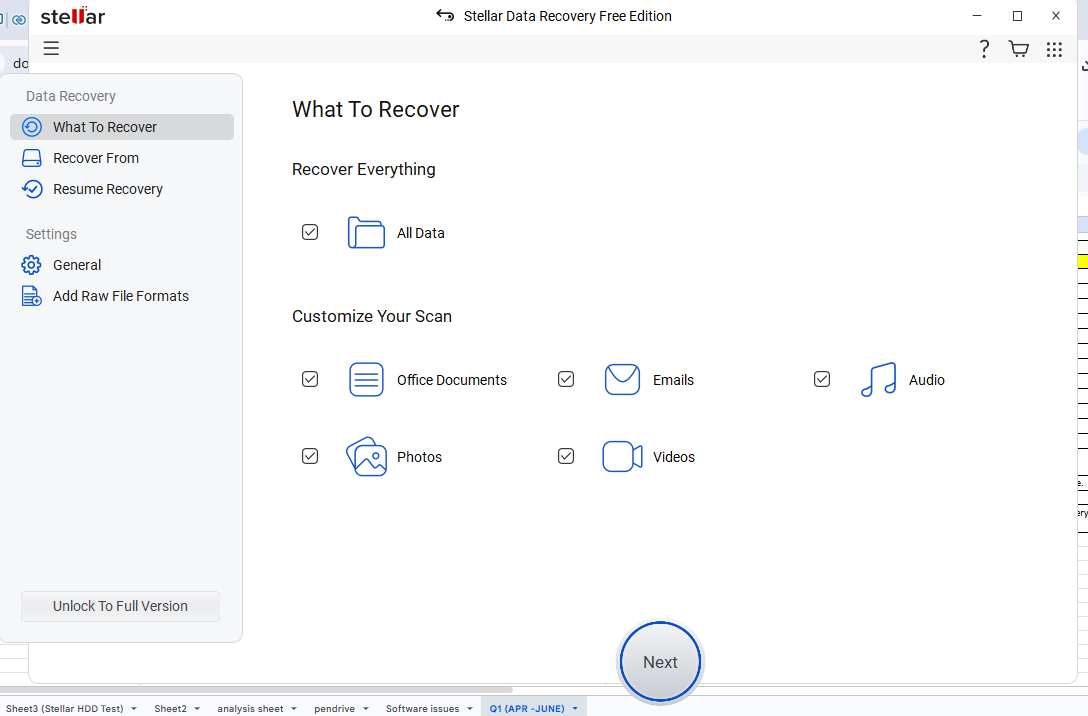
You don’t really need to know much about data recovery to use it, as you basically select what you want to recover, choose where you lost it, and let the software start looking for it. It works with everything from your regular hard drives and SSDs to USB drives and memory cards, so there are quite a few situations where this little piece of software could save your day.
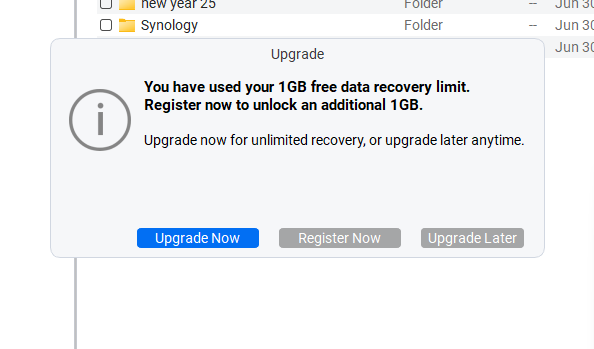
One thing that definitely stands out here is that you can recover up to 2GB of data for free. You get 1GB of free recovery from the start, and if that’s not enough, you can unlock another 1GB by sharing the software on social media. That’s quite a lot of documents, and potentially a fair number of photos as well, that you could recover without having to reach for your wallet.

Highlighted Features:
- Recover up to 2GB of data for free
- Quick Scan and Deep Scan
- Preview files before recovering them
- Recover documents, photos, videos, audio, and more
- Supports HDDs, SSDs, USB drives, and memory cards
How To Recover Your Files With Stellar Data Recovery Free
When looking at the recovery process for Stellar’s software, and consulting how Stellar themselves describe the process, we would say that the basic process is as simple as this:
- Install & Launch the Windows version.
- Choose What to Recover, such as documents, photos, videos, or everything.
- Select the Location & Scan, with Deep Scan available when necessary.
- Preview & Recover the files you want.
2. Recuva
If you have ever looked for a way to recover deleted files before, there is a pretty good chance that you have stumbled upon Recuva at some point. It has been around for what feels like forever, and while it might not have the most exciting or modern-looking interface in the world, that’s not really what we’re here for anyway. We want our files back.
Recuva keeps things fairly simple and can recover files from your regular drives, memory cards, USB drives, and other storage devices. There is also a Deep Scan available when the regular scan comes back empty-handed, which is probably the button most of us are going to reach for when that file we desperately need refuses to show itself.
Highlighted Features:
- Free advanced file recovery
- Deep Scan for harder-to-find files
- Supports internal and external storage
- Recovery from damaged or formatted disks
- Secure deletion for files you actually don’t want recovered
Getting Your Deleted Files Back With Recuva
Recuva takes a slightly different approach, but the overall process is still pretty straightforward. For most people, the easiest route is to use the Recuva Wizard and let it walk you through what needs to be done.
- Launch Recuva and start the Recuva Wizard.
- Choose the File Type you are trying to recover, or select all files if you aren’t sure.
- Tell Recuva Where to Look, or let it search everywhere if you don’t know where the file was located.
- Start the Scan and enable Deep Scan if the regular search doesn’t find what you need.
- Select & Recover the files you want to bring back.
3. PhotoRec
PhotoRec is where things start getting a little more technical. Despite what the name suggests, this isn’t just some little utility for recovering the vacation photos you accidentally deleted three summers ago. It can actually recognize hundreds of different file formats and uses file signatures to hunt down recoverable data, which means it can sometimes find files even when the filesystem itself has been damaged.
There is a catch, though. PhotoRec isn’t nearly as friendly to look at or use as some of the other software on this list, and recovered files generally won’t come back nicely organized with their original filenames and folders intact. However, it’s completely free and open source, and if the easier recovery methods have failed you, this is certainly one of those tools that is worth knowing about.
Highlighted Features:
- Completely free and open source
- Supports 440+ file formats
- Signature-based file recovery
- Can recover files from corrupted filesystems
- Available for Windows, macOS, and Linux
Digging Up Lost Files With PhotoRec
PhotoRec is a little more technical than most of the other software on our list, so don’t be surprised when you don’t get the same polished graphical experience. However, once you understand what it is asking you to select, the actual idea behind the recovery process is fairly simple.
- Launch PhotoRec and select the storage device containing your lost files.
- Select the Partition you want PhotoRec to search.
- Choose What to Scan, either the available free space or the entire partition when appropriate.
- Choose a Destination where your recovered files should be saved.
- Start the Recovery and let PhotoRec search for recognizable files and save whatever it manages to recover.
4. EaseUS Data Recovery Wizard Free
EaseUS Data Recovery Wizard Free takes us back into considerably more familiar territory. Instead of throwing a bunch of technical commands at you, the software lets you select where your files disappeared from and then starts scanning that location for anything it might be able to bring back from the digital graveyard. You can preview what it finds, filter through the results, and recover the files you actually care about instead of restoring absolutely everything.
The free edition lets you recover up to 2GB of data, so there is actually quite a bit you can potentially get back before having to consider one of the paid versions. It also supports more than 1,000 file types, according to EaseUS, which should cover pretty much anything the average Windows user is likely to have accidentally sent into oblivion.
Highlighted Features:
- Recover up to 2GB of data for free
- Preview files before recovery
- Filter scan results by file type, date, and name
- Recover files while scanning is still underway
- Supports more than 1,000 file types
Let EaseUS Search For Your Missing Files
EaseUS Data Recovery Wizard keeps the recovery process pretty visual, which is helpful when the last thing you want to deal with is another complicated problem. Instead of requiring much technical knowledge, you essentially tell it where the files disappeared from and let it start searching.
- Install & Launch EaseUS Data Recovery Wizard Free.
- Choose the Location where your missing files were previously stored.
- Start the Scan and allow EaseUS to search for recoverable data.
- Filter & Preview the results to find the files you actually want back.
- Select & Recover your files to a safe storage location.
5. Windows File Recovery
And finally, we have something that you might not even have known existed. Microsoft actually offers its own completely free data recovery software called Windows File Recovery. Why this isn’t something that is just sitting there in Windows waiting for us when disaster strikes is a question for another day, but at least it exists.
There is one pretty significant difference compared to most of the other software we’ve looked at, though. Windows File Recovery doesn’t have the friendly graphical interface you are probably expecting. Instead, it runs through Command Prompt, meaning this is probably better suited for people who don’t immediately break into a second round of panic when they see a blinking cursor waiting for them to type something. If that doesn’t bother you, however, Microsoft’s own recovery tool is completely free and definitely worth keeping in mind.
Highlighted Features:
- Completely free to use
- Developed by Microsoft
- Regular and Extensive recovery modes
- Supports internal drives, external drives, and USB storage
- Search for files using names, folders, extensions, and wildcards
Recovering Files The Microsoft Way
Windows File Recovery is where the process becomes a little less point-and-click. Microsoft’s recovery software works through the command line, so you’ll need to tell Windows what drive you want to recover from, where the recovered files should go, and, when needed, what you’re actually looking for.
- Install Windows File Recovery from the Microsoft Store.
- Open Windows File Recovery and allow it to run with the required permissions.
- Choose Your Source & Destination Drives, making sure they are different drives.
- Enter the Recovery Command using Regular or Extensive mode depending on the situation.
- Start the Recovery and check the recovery folder created on your destination drive for the files Windows managed to find.
Choosing The Right Software
Yeah, this is where your decision anxiety really kicks in. What data recovery software should you pick? How do I know? How do I pick? Well, maybe you don’t have to make an informed decision. You know you want your files back, and you know you want them back fast. So, why not just pick one that feels aligned with what you need it for? It really doesn’t have to be more complicated than that. You already know that’s what most people do anyway. People really don’t have the time or patience to read through pages and pages of features, facts, limits, and technical jargon. People want a solution, and they want it fast.
So, our recommendation is to pick one and see if it works. If it doesn’t, try another one. Just remember, whatever you do, avoid writing new data to the drive you’re trying to recover from, as you could overwrite the very files you’re trying to save. That’s the simplest and most common way people go about this topic, no matter how you look at it. That might sound like a myth, but it really isn’t. In 2026, that’s exactly how people go about things.
For goodness’ sake, people can’t even watch a YouTube Short to the end before swiping to the next one. People’s attention spans are REALLY short these days. I would be surprised if many people even read this particular sentence at the very end of this article. If you do, then congrats! You are among the few who actually pay attention to the entire scope of things.
Well, hopefully, we have helped you along the way, and perhaps we were able to send you on a quest that led you to a solution that completely saved your day. If we did, please share this article with someone who is panicking over their lost data and files and become the hero of the day. Most heroes don’t wear capes. Or something like that. Good luck!

COMMENTS